Select properties on the map by block or building
Use the Multi-Select Tool to select and analyse a group of properties by drawing an area on the map.
Before you start
The Multi-Select Tool is available from the map view. Search for any property in the area you want to explore — this will load the map and give you access to the tool.
Finding the Multi-Select Tool
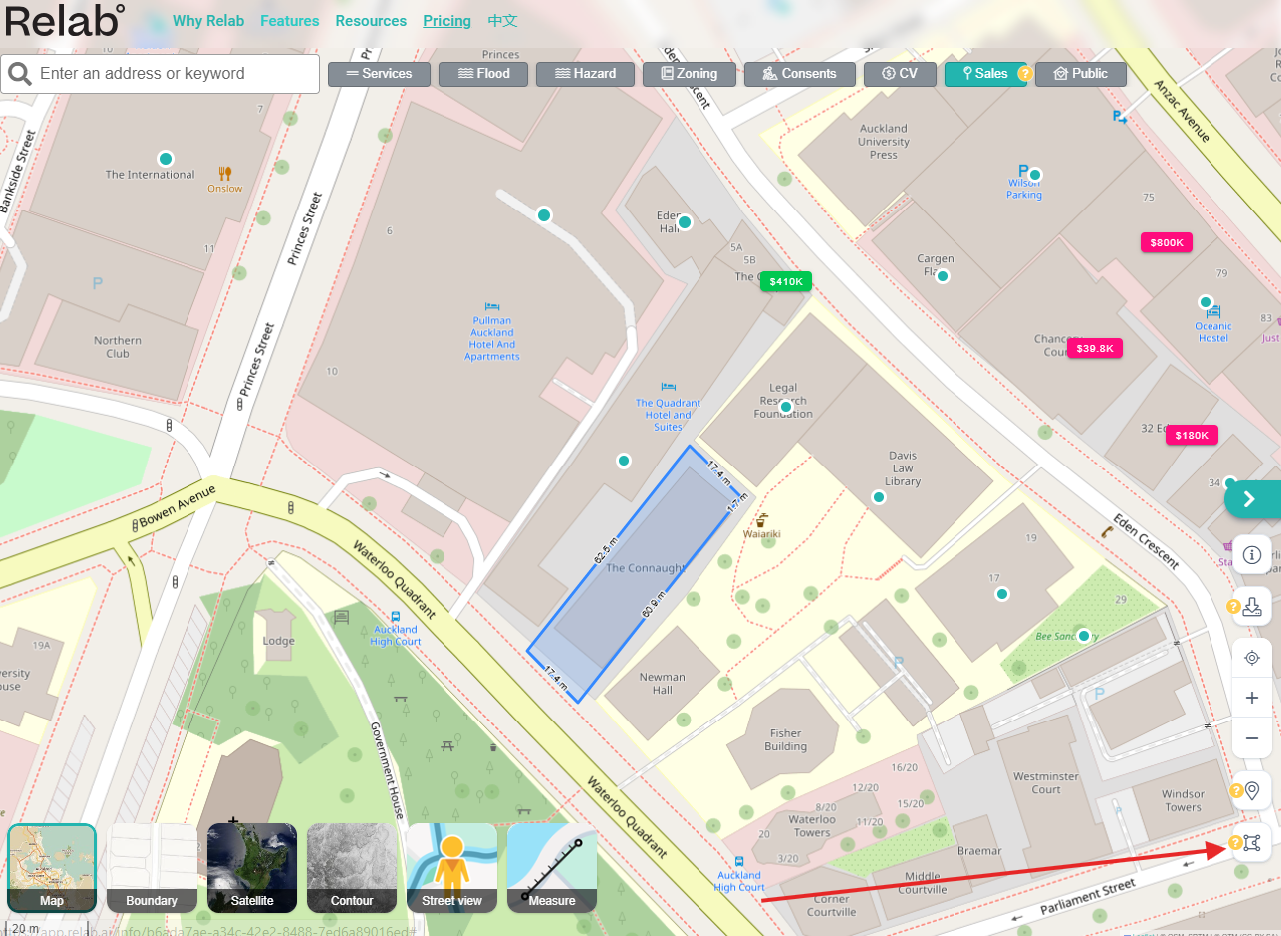
The Multi-Select Tool icon (connected dots) is in the toolbar at the bottom right of the map. Click it to start drawing a selection area.
How to use the Multi-Select Tool
Step 1: Open the Multi-Select Tool
Click the Multi-Select Tool icon (connected dots) at the bottom right of the map.
Step 2: Draw your area
Click on the map to start drawing. Each click places a point. A teal outline shows the area you are defining.
Step 3: Confirm your selection
Click anywhere inside the teal highlighted area to confirm. The boundary will be highlighted and the Multi-Select summary panel appears, showing:
Number of properties found
Combined Council Valuation (CV)
Total land size
Step 4: View and filter your results
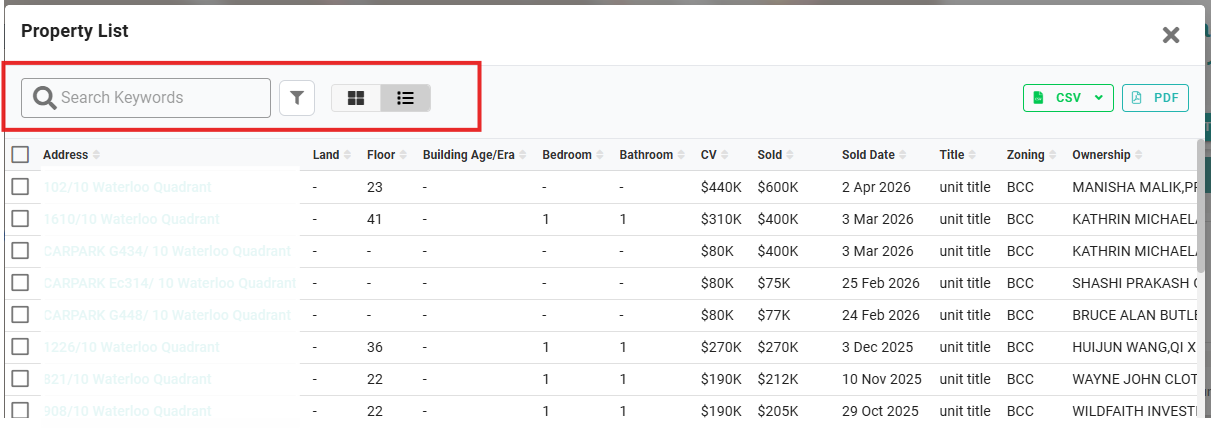
Click the teal List button on the summary panel to view all properties. Filter results by:
Bedrooms
CV range (minimum and maximum)
Sold date
Land size
Floor area
Toggle between grid and list view, or sort results in ascending or descending order.
Step 5: Export your results
Click the green Export button to download a CSV file. You can select specific properties before exporting rather than downloading all at once.
Viewing all units in a multi-unit building
If you need all units in a single apartment building or complex, use the building icon on the map instead of drawing a polygon.
Each multi-unit building has a teal dot on the map. Click it to load all units in that building — there is no cap when using this method.
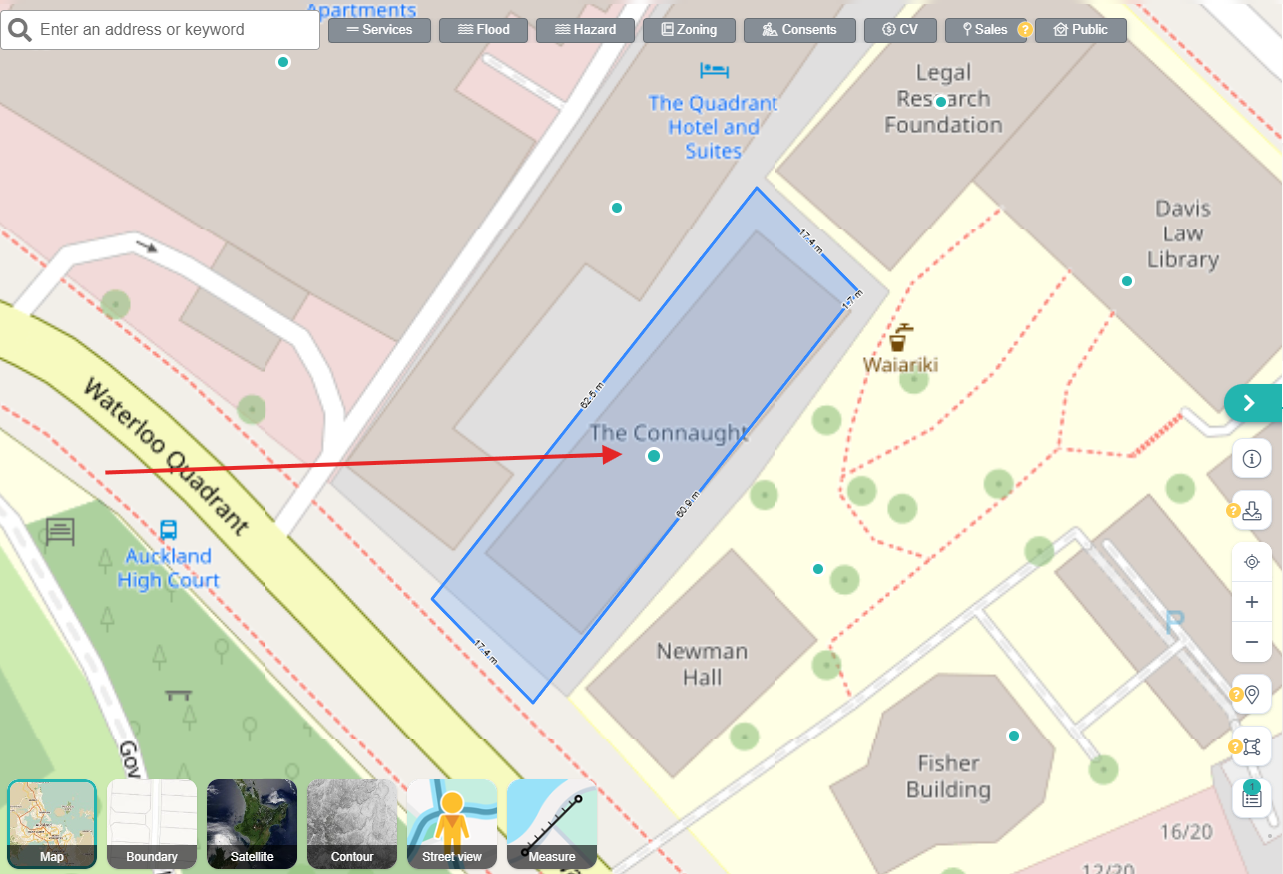
If the Sales toggle is on at the top of the map, the teal dot may be replaced by a sale or listing icon on that building:
Pink price tag — property recently sold
Green icon — active listing
Clicking any of these icons loads all units in the building the same way.
❓ FAQs
What is the maximum number of properties the Multi-Select Tool can show?
When drawing a polygon across different properties, results are capped at 100. If you need all units in a single building, use the teal dot or sale/listing icon on the building instead — this method has no cap and will load all units regardless of how many there are.
Are my selections saved when I close Relab?
No. Selections made with the Multi-Select Tool are temporary and will be cleared when you close or refresh Relab. You can minimise a selection using the list icon at the bottom right of the map and reopen it during the same session, and you can have multiple selections open at the same time.
How do I view a list of all properties in an area, not just recent sales?
Draw a selection area with the Multi-Select Tool to see all properties regardless of sale history. For comparable sales and listings, see Finding and selecting comparables or the CMA Polygon Tool.
How do I work out the total land area and value of two or more properties?
Use the Multi-Select Tool to draw around the properties. The Multi-Select summary panel shows the combined land size and total CV for your selection.
Related articles
Last updated: 10 June 2026