Getting started with Page Builder
Page Builder lets you customise editable pages in your CMA, including text, images, shapes, and dynamic fields.
How to open Page Builder
Not all pages in your CMA can be edited. Editable pages have a row of buttons at the top of the page. Click the Page Builder button (the third button) to open the builder.
Which pages can be edited
Pages that contain live data, such as Property Details, Comparable Sales and Listings, Property Map, and Title Page, do not have the Page Builder option.
Page Builder toolbar
The toolbar runs across the top of the screen and gives you quick access to editing tools.
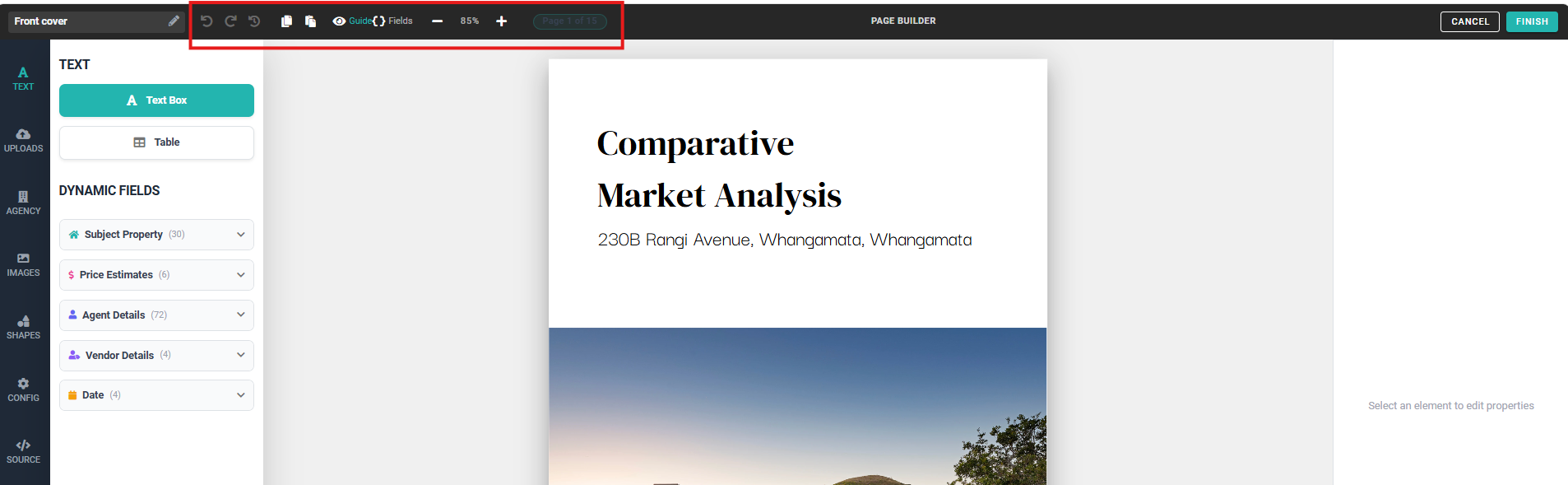
Undo and Redo
Click Undo or Redo in the toolbar to step back or forward through your changes. You can reverse individual actions without losing other work.
Copy and Paste page content
Click Copy Page Content to copy everything on the current page. Go to another template, click Add a New Page, open Page Builder, and click Paste Page Content. This copies all elements across, letting you reuse page designs between templates without merging them.
Guides and Fields
Click Guides to show or hide visual guides that mark editable areas on the page. Click Fields to toggle dynamic field labels on or off.
Zoom
Use the minus and plus controls to zoom in and out. This makes it easier to work on small elements like text boxes. The current zoom level shows as a percentage between the controls.
Page navigation
The page indicator shows which page you are on (for example, "Page 1 of 15"). Use it to move between pages without leaving Page Builder.
Cancel and Finish
Click Cancel at the top right to discard all changes and exit. Click Finish to save your changes and return to the CMA Editor.
Working with text and dynamic fields
Adding text
Click the Text tab in the left sidebar. Click Text Box to add a new text box to the page, or click Table to insert a table.
Double-click any text box on the page to edit its content. When a text box is selected, the right panel shows formatting options including font, size, colour, alignment, style, line height, and text transform.
Adding dynamic fields
Dynamic fields pull data directly into your CMA and update automatically. Expand any category under Dynamic Fields in the Text tab to see available fields:
Subject Property — address, land area, floor area, bedrooms, bathrooms, and more
Price Estimates — valuation and estimate data
Agent Details — agent name, phone, email, agency name, and other profile information
Vendor Details — client name and contact details
Date — current date fields
Click a field to insert it into a selected text box. The field populates with real data when the CMA is generated.
Working with images
Adding images
Open the Uploads tab to upload your own images, or open the Images tab to choose from property photos already linked to your CMA. The Images tab includes:
Subject Property — photos of the subject property
Nearby Sales — photos from comparable sales
Nearby Listings — photos from current listings
Make sure no existing image is selected before adding a new one, or the new image will replace the selected one.
Resizing and moving images
Click on any image to select it.
Drag the corner handles to resize.
Drag the image to reposition it anywhere on the page.
Replacing images
Select the image you want to replace.
Click Replace Image.
Choose a new image from Uploads or Images in the left sidebar.
Other sidebar tools
The left sidebar includes additional tabs for building your page:
Agency — agency logos and branding assets
Shapes — add shapes to your page layout
Config — page configuration settings
Source — view and edit the underlying page source
❓ FAQs
Can I undo a mistake without losing all my changes?
Yes. Click the Undo button in the toolbar to reverse your last action. You can click it multiple times to step back through several changes. The Redo button steps forward again. You can also use Ctrl+Z (Cmd+Z on Mac) as a keyboard shortcut.
Can I copy a page design from one template to another?
Yes. Open the page you want to copy and click Copy Page Content in the toolbar. Then open the other template, add a new page, open Page Builder, and click Paste Page Content. All elements from the original page are copied across.
What are dynamic fields?
Dynamic fields are placeholders that pull real data into your CMA automatically. For example, inserting a Subject Property field adds the actual property address when the CMA is generated. You can find them under Dynamic Fields in the Text tab.
What image formats work for uploading images to CMA?
JPEG and PNG.
How many images can I add per page?
There is no limit on the number of images you can add in Page Builder, but 2 to 6 images per page works best for visual impact and performance.
When I open a saved CMA, does the date update to today's date?
Yes, it does.
Related articles
Last updated: 15 May 2026